End-to-end encryption keeps the contents of a transfer readable to you and your recipient, and to nobody else. WeTransfer Enterprise supports it, and workspace admins decide who can use it.
On a standard transfer, files are encrypted in transit and at rest. With end-to-end encryption, files are encrypted in the sender's browser before they are uploaded, and only the sender and the recipient hold the key. WeTransfer stores and delivers only encrypted data, so it can't read or preview the files, and it can't scan them for malware. The recipient needs the link and a separate encryption key to open them.
We can enable end-to-end encryption upon request on selected customers. Contact your account manager to check whether it's available for your workspace.
What end-to-end encryption protects
End-to-end encryption protects file contents. Only the sender and the recipient hold the key that unlocks them, and WeTransfer never receives that key.
It isn't the same as a transfer password. A password controls who can open the link. End-to-end encryption protects the file contents themselves, and only the sender and the recipient hold the key.
Who can use it
- End-to-end encryption is an Enterprise add-on, enabled on request for selected customers.
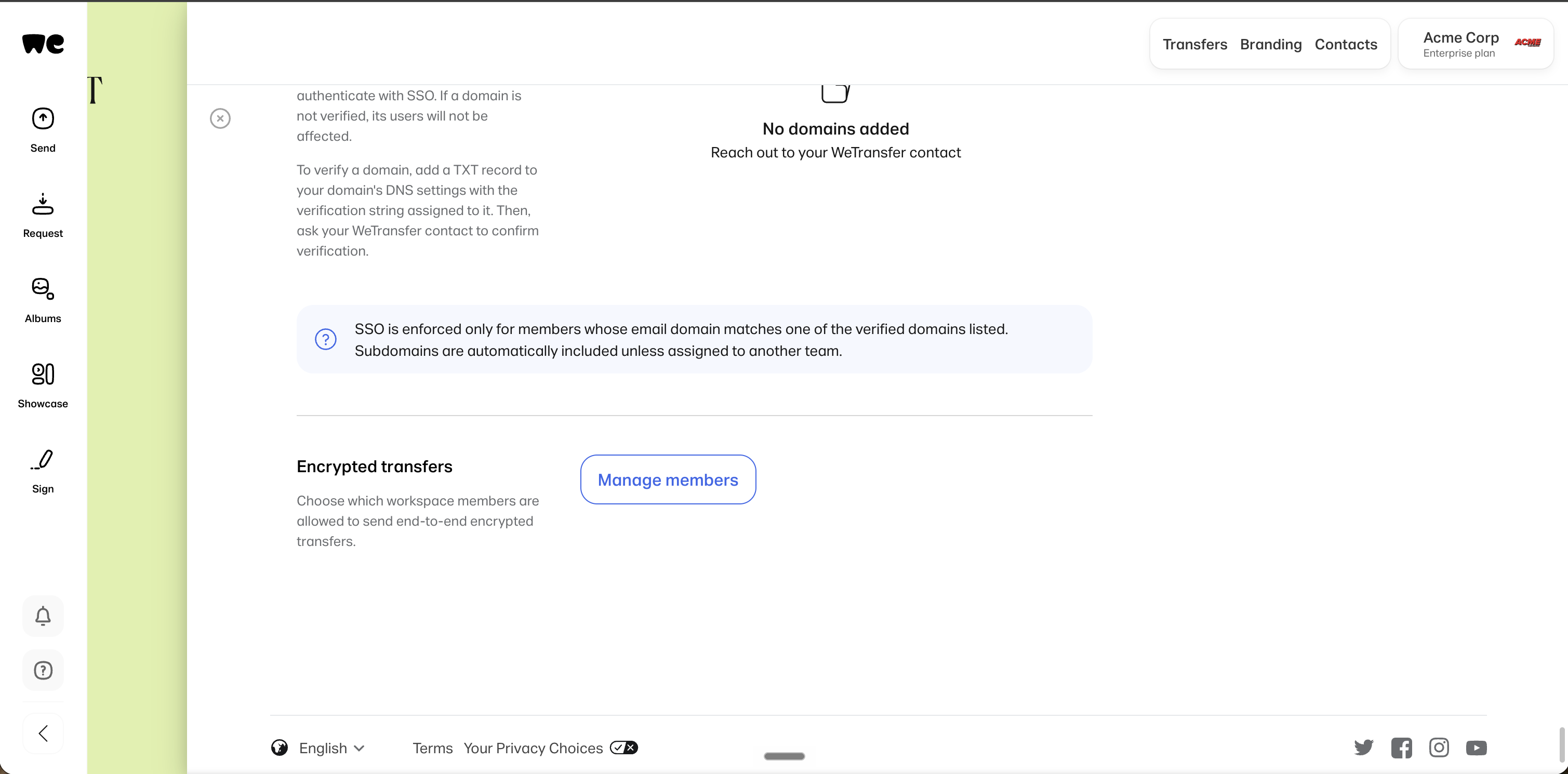
- Workspace admins choose which members can send end-to-end encrypted transfers, in Workspace Settings → Security → Encrypted transfers.
- Only link transfers can be encrypted. Email transfers and file requests can't.
- Encrypted transfers can still be protected with a password and access control.
How it works
- The sender turns on Encrypted in the transfer options.
- The browser generates a random encryption key and encrypts the files with AES-256-GCM before anything is uploaded.
- Only the encrypted files leave the device. WeTransfer stores them without ever seeing the key.
- The sender shares the link and the encryption key through two separate channels.
- The recipient opens the link, enters the key, and their browser decrypts each file as it downloads.
Sending an encrypted transfer
- Add files and open the transfer options.
- Under Extra settings, tick Encrypted.
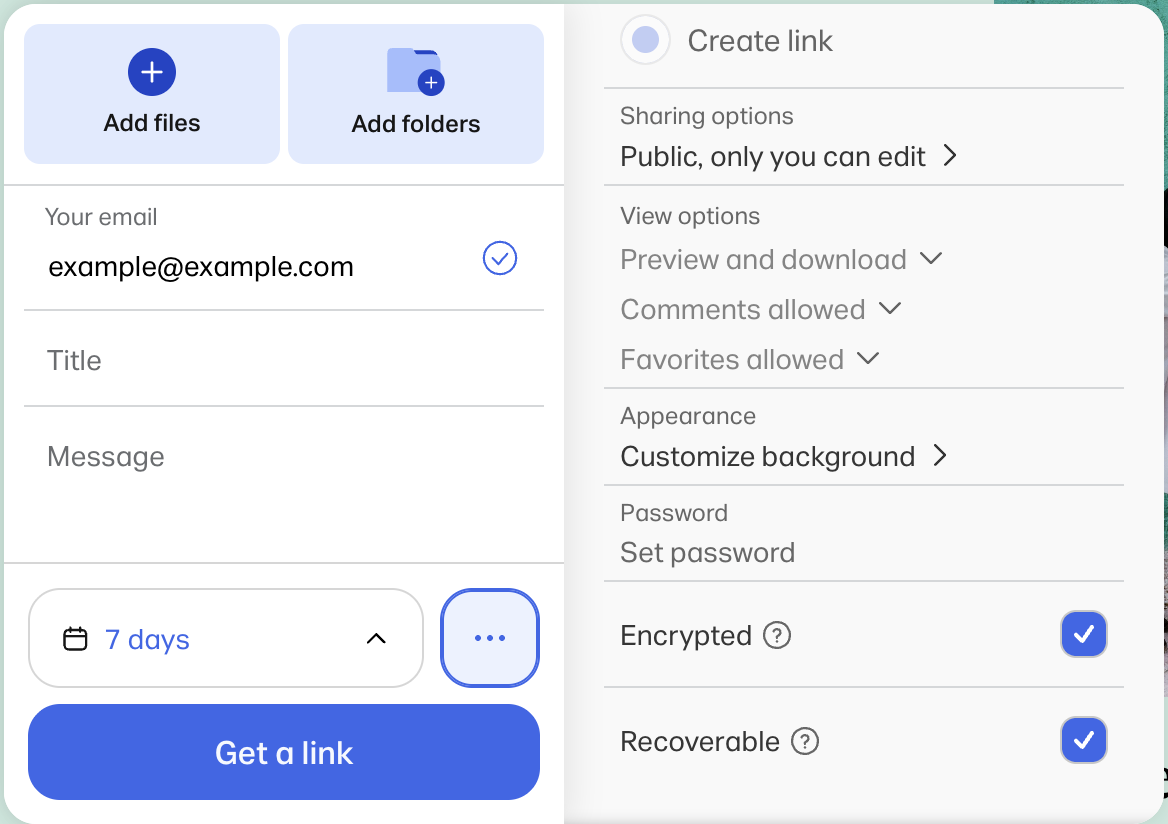
- Review the notice: files can't be previewed, and the recipient needs both the link and the key.
- Send the transfer.
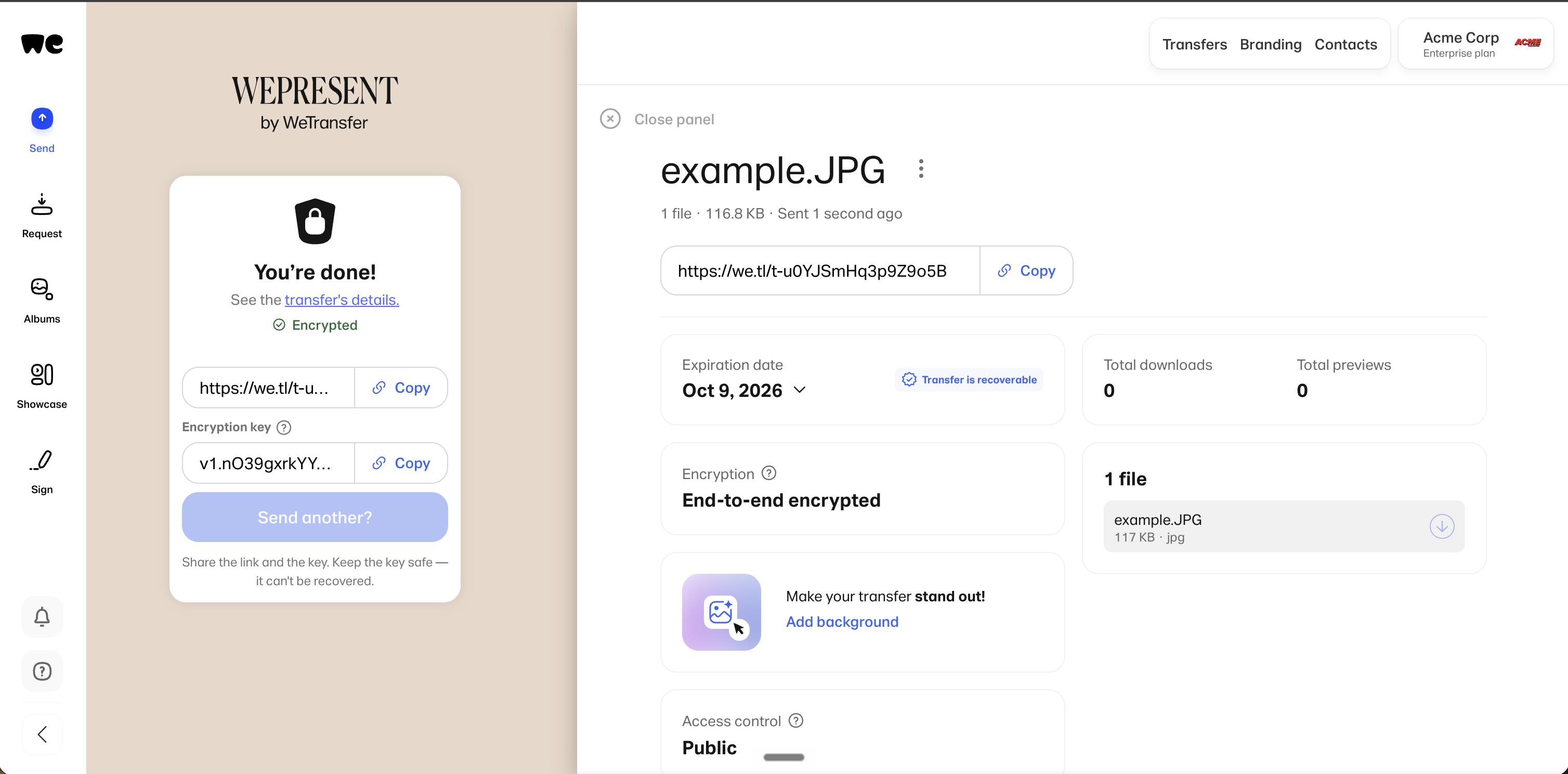
- On the confirmation screen, copy the encryption key and the link. You must copy both before you finish.
- Share the link and the key separately, for example the link by email and the key through your password manager or a secure message.
Keep the key safe. It can't be recovered or regenerated.
Receiving an encrypted transfer
- Open the link.
- Paste the encryption key the sender shared with you and select Decrypt.
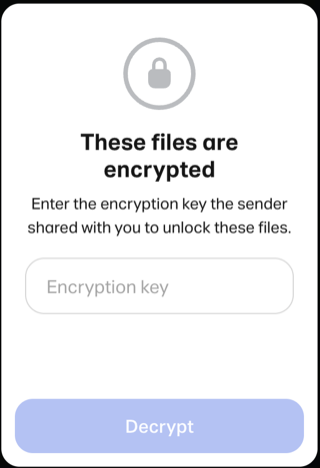
- Your browser decrypts the files and downloads them one at a time.
- Open the files as usual.
If the key is wrong or the transfer didn't arrive intact, you'll be asked for the key again. If your browser can't decrypt the files, open the link in an up-to-date desktop browser.
Standard transfer | End-to-end encrypted transfer | |
|---|---|---|
| Encryption keys | Managed by WeTransfer | Held only by the sender and the recipient |
| Preview in the browser | Yes | No |
| Malware scan | Yes | No. The files are unreadable to our malware scanner. |
| Transfer type | Link or email | Link only |
| Editing, forwarding, and adding recipients | Yes | No |
| Downloads | ZIP or single files | One file at a time, decrypted in the browser |
| Supported clients | All, including the mobile apps | Up-to-date desktop browsers |
Keeping your encryption key safe
- WeTransfer never sees the key, so nobody can recover it for you.
- Share the link and the key through different channels, never in the same message.
- Store the key in your password manager before you close the confirmation screen.
- If you lose the key, the files are permanently inaccessible, even to WeTransfer.
Frequently asked questions
Can workspace admins read encrypted transfers?
No. Admins can see that a transfer exists and its details, but not the file contents.
Can I send an end-to-end encrypted transfer by email?
No. Encrypted transfers are link transfers only. You can still share the link by email, but the key must be shared separately.
Can recipients preview encrypted files?
No. Files are decrypted in the browser at download time, so previews and thumbnails aren't available. Recipients download one file at a time.
What happens if I lose the encryption key?
The files become permanently inaccessible. WeTransfer never sees the key, so it can't be recovered or regenerated.
Is end-to-end encryption the same as a password?
No. A password controls who can open the link. End-to-end encryption protects the file contents themselves, and only the sender and the recipient hold the key.